Updated on: May 27, 2026
7 min read
AI Catalog: Discover, create, and share agents and flows
Explore the GitLab AI Catalog to discover and enable foundational and custom agents and flows, manage MCP servers, and share them with your team.


Welcome to Part 5 of our eight-part guide, Getting started with GitLab Duo Agent Platform, where you'll master building and deploying AI agents and workflows within your development lifecycle. Follow tutorials that take you from your first interaction to production-ready automation workflows with full customization.
In this article:
- What is the AI Catalog?
- Browsing and enabling agents and flows
- Creating, sharing, and managing visibility
- Understanding versioning
🎯 Try GitLab Duo Agent Platform today!
Introduction to the AI Catalog
The AI Catalog is a central repository for discovering, creating, and sharing agents and flows across your organization. It promotes consistency, reusability, and collaboration by enabling teams to leverage pre-built solutions and best practices.
What you can do:
- Discover: Browse agents and flows created by GitLab and the community.
- Create: Create and maintain custom agents and flows in a single interface.
- Enable: Enable agents, flows, and MCP servers in projects. When you enable them in a project, they also become available to the top-level group for reuse.
- Share: Publish your agents and flows for others to use (Public or Private).
- Duplicate: Copy and customize existing agents and flows.
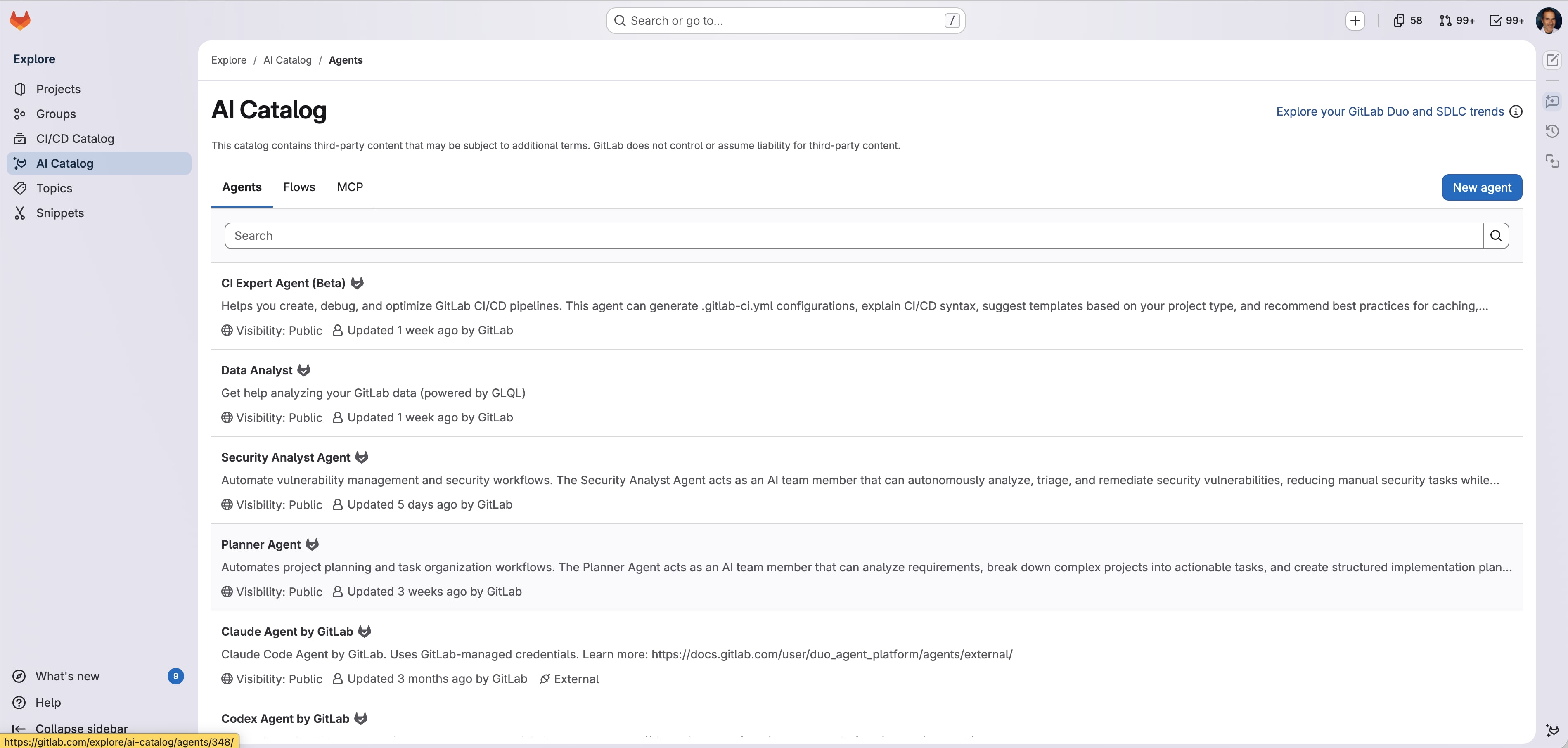 AI Catalog
Accessing and working with the AI Catalog
You can access the AI Catalog in two ways:
- Via the top search bar: Select Explore → AI Catalog or search for AI Catalog.
- Via the GitLab Duo sidebar: Open a project and select GitLab Duo AI Catalog from the bottom of the GitLab Duo sidebar (available in GitLab 18.11+).
The catalog provides three types:
- Agents — Agents (foundational, custom, and external). Foundational and custom agents are used interactively in Duo Chat, while external agents run headlessly when triggered from issues, merge requests, or epics and execute their work through CI/CD pipelines.
- Flows — Flows (foundational and custom) that orchestrate multiple steps (and often multiple agents) into a repeatable, event- or button-triggered automation.
- MCP servers — Model Context Protocol servers that extend agents and flows with specialized tools and external data sources. Note: Experimental feature added in 18.10
For more information on MCP, see the MCP servers in AI Catalog documentation.
For detailed information, see the AI Catalog documentation.
Discover agents and flows
The AI Catalog makes it easy to find agents and flows that fit your needs:
How to browse:
- Navigate to Explore > AI Catalog.
- Select either the Agents or Flows tab.
- Browse the available agents or flows and inspect the title, description, and visibility status.
- Click on any agent or flow to view more details.
Enabling agents and flows
To use an agent or flow, you need to enable it in a specific project:
From Explore > AI Catalog, open the agent or flow, click Enable, and choose the project where you want to use it (Maintainer or Owner required).
Alternatively, in a project, go to AI > Agents or AI > Flows and use the UI there to enable any catalog items that are available to that project.
Creating, sharing, and managing visibility
Create agents and flows
Here are step-by-step instructions for creating agents and flows.
Create agents:
Navigate to Explore > AI Catalog > Agents > New agent.
- Brainstorm and define a specific task or specialization for this agent, for example, a debugging and troubleshooting agent.
- Add a display name and description to allow others to identify the purpose and why they would want to use the agent, for example
troubleshoot-debugger. - Specify visibility and access. Select a private project and set visibility to private to start with experiments.
- Define the agent behavior, capabilities, and specialization in the system prompt. For details on crafting effective system prompts, see Part 3: Understanding agents.
- Optionally select and limit the tool access for agents. For example, a debugging agent needs read access to code, issues, and merge requests, but may not require write access to make changes.
Create flows:
Navigate to Explore > AI Catalog > Flows > New flow.
- Brainstorm and define a complex multi-step specific task, for example, a CI/CD pipeline optimizer flow.
- Add a display name and description to allow others to identify the purpose and why they would want to use the flow, for example
ci-cd-optimizer. - Specify visibility and access. Select a private project and set visibility to private to start with experiments.
- Define the flow behavior and its agent components, prompts, and routers. For details on flow YAML structure, see Part 4: Understanding flows.
For more details, see:
Share your work and set visibility
When creating agents or flows, you can choose between Private and Public visibility to control who can access and use them.
Private:
- Can be viewed only by members of the managing project who have at least the Developer role, or by users with the Owner role for the top-level group.
- Cannot be enabled in other projects.
- Useful for team-specific or sensitive workflows.
Public:
- Viewable by anyone on the instance.
- Can be enabled in any project that meets prerequisites.
- Appears in AI Catalog for discovery.
Best practices for sharing
When publishing agents and flows to the AI Catalog, follow these guidelines:
Naming:
- Use clear, descriptive names (e.g.,
security-code-review,api-documentation-generator). - Avoid generic names like
agent1ormy-flow. - Include the purpose in the name when possible.
Documentation:
- Provide a clear description of what the agent or flow does.
- Include use cases and examples.
- Document any prerequisites or dependencies.
Quality:
- Test thoroughly before publishing.
- Ensure the agent or flow solves a real problem.
- Keep it maintainable and well-documented.
- Consider edge cases and error handling.
Visibility decisions:
- Start with Private to test with your team.
- Move to Public once validated and documented.
- Publish only if it provides clear value to others and a defined audience.
Understanding versioning
Note: Versioning applies only to custom agents and flows. Foundational agents and flows provided by GitLab do not use versioning.
Custom agents and flows in the AI Catalog maintain a version history to track changes.
How versioning works:
- GitLab automatically creates a new version when you update an agent's system prompt or modify a flow's configuration.
- Versions use semantic versioning (e.g.,
1.0.0,1.1.0). - GitLab manages semantic versioning automatically — updates always increment the minor version.
- Versions are immutable, ensuring consistent behavior.
Version pinning:
Version pinning behavior depends on where the agent or flow is enabled:
- In the managing project (where the agent or flow is created): GitLab does not pin a version. Instead, the managing project always uses the latest version once you've updated at least once.
- In a group: GitLab pins the agent or flow to the latest version at the time of enablement.
- In a consumer project (a project that doesn't manage the item): GitLab pins it to the same version as your top-level group.
This means:
- Your projects use a fixed, stable version of the agent or flow.
- Updates in the AI Catalog don't automatically affect your configuration.
- You must opt in to update to new versions — updates are never automatic.
- You maintain full control over when to adopt new versions.
- The managing project always has access to the latest improvements and fixes.
Viewing versions:
- Navigate to AI > Agents or AI > Flows.
- Select the agent or flow to view its version on the right side in the About section.
Updating to the latest version
When a new version of an agent or flow is available in the AI Catalog, you can update your projects to use it.
- Navigate to AI > Agents or AI > Flows.
- Click the agent or flow you want to update.
- Click the View latest version button (appears when a newer version is available).
- Review the changes in the new version.
- Click update to pin your project to the latest version.
What's next?
You now understand how to discover, create, and share agents and flows through the AI Catalog. Next, in Part 6, learn how to monitor agent and flow activity through sessions, set up event-driven triggers, and manage your AI workflows.
Resources
Next: Part 6: Monitor, manage, and automate AI workflows
Previous: Part 4: Understanding flows

More to explore
View all blog posts


We want to hear from you
Enjoyed reading this blog post or have questions or feedback? Share your thoughts by creating a new topic in the GitLab community forum.
Share your feedback